Mod Alerts editor
Mod Alerts is a visual scene editor for OBS. You build a scene on the canvas from text, images, video, a timer and a QR code, and the stream updates in real time. The streamer and moderators who have been granted the "Mod Alerts" permission can edit the canvas.
The section is available on the "Streamer" plan and above.
Where to find it
In the dashboard open Mod Alerts (BETA). The section is in beta, so features may change.
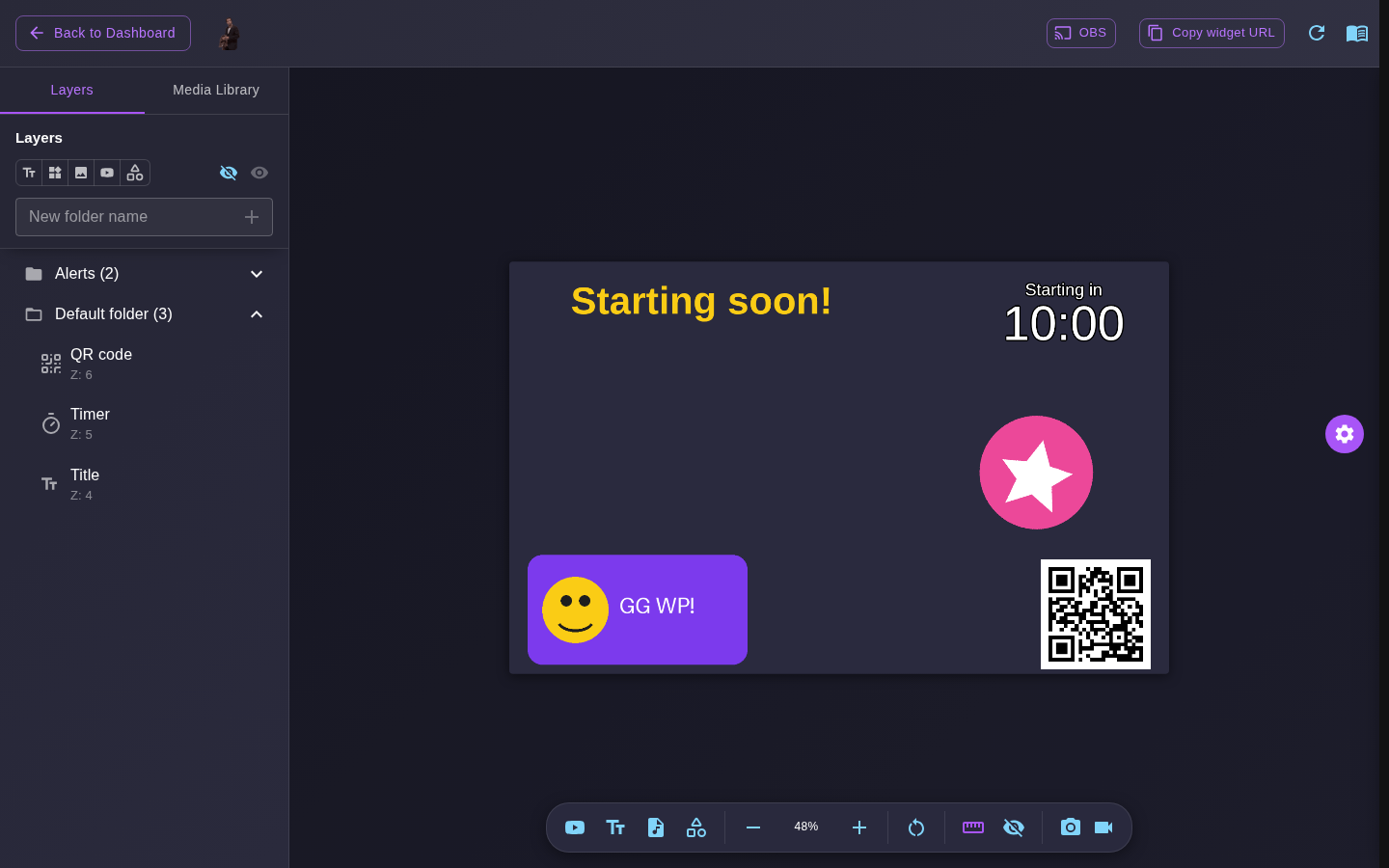
An example scene: text, a timer, an alert image and a QR code with the channel link
What you can put on the canvas
| Component | How to add |
|---|---|
| Text | Add Text button in the bottom toolbar |
| Image, GIF, video | Media Library tab, details |
| YouTube video | Add YouTube button: paste a video or Shorts link |
| Timer and QR code | Overlays button |
| Sounds | Sound Library: up to 50 sounds per channel, playable on stream right from the editor |
When OBS WebSocket is connected, three more buttons appear in the toolbar: add your own widget by URL (iframe), import an existing OBS browser source into Mod Alerts, and switch the OBS scene. Any component can be bound to an OBS scene so it shows only while that scene is active.
Interface

Top: the OBS button (OBS connection), Copy widget URL, a regenerate icon and a link to this documentation. On the left are the Layers and Media Library tabs, the canvas is in the middle and the toolbar is at the bottom. The gear on the right opens the properties of the selected component.

Left to right: YouTube, text, sounds, overlays, zoom, reset view, distance rulers, show hidden components, stream screenshot and live stream. The last two put your stream behind the canvas so you can place components precisely. They never reach the media library or OBS.
Only the channel owner sees the widget URL, its regeneration and the OBS settings. A moderator with the Mod Alerts permission edits the canvas but does not get the link.