Component properties
Select a component on the canvas or in the layers list and click the gear on the right to open the Properties panel. Every change applies instantly and is visible in OBS.
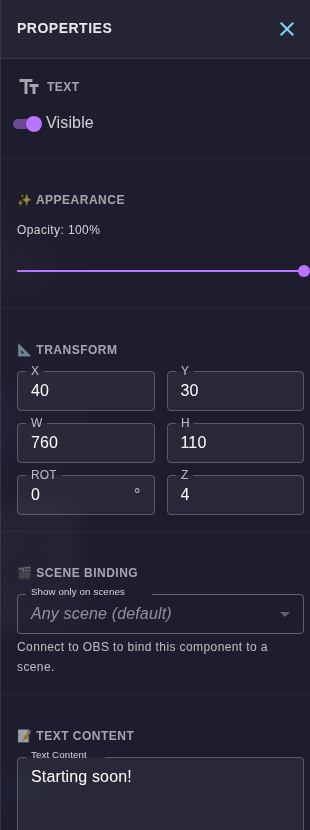
Common sections
Every component has:
- Visible: shows or hides it on stream. A new overlay (timer, QR) is created hidden: turn it on once you have placed it.
- Appearance: opacity from 0 to 100%.
- Transform:
X,Y(top-left corner, in pixels from the canvas corner),W,H(width and height),ROT(rotation in degrees, clockwise) andZ(layer order: higher is on top). You can do the same with the mouse by dragging the component and its corner handles; hold Shift to resize without keeping proportions. - Scene binding: show the component only on the chosen OBS scenes. The list fills in after you connect OBS WebSocket.
- Layer order: the "Bring to Front" and "Send to Back" buttons.
- Actions: "Reset position" and "Delete" (deleting cannot be undone).
Text
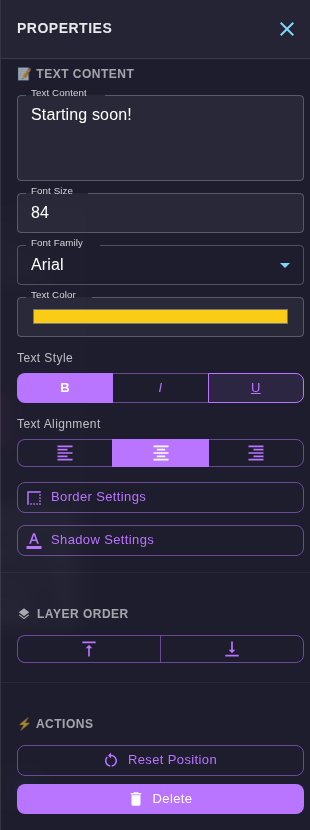
The Text content section has the text itself, font size, font family, color, style (B, I, U), alignment, plus the Border settings and Shadow settings windows.
Image and video
The image settings section has a Mirror toggle (horizontal mirror). Video adds volume, loop and "Hide after playback".
Timer
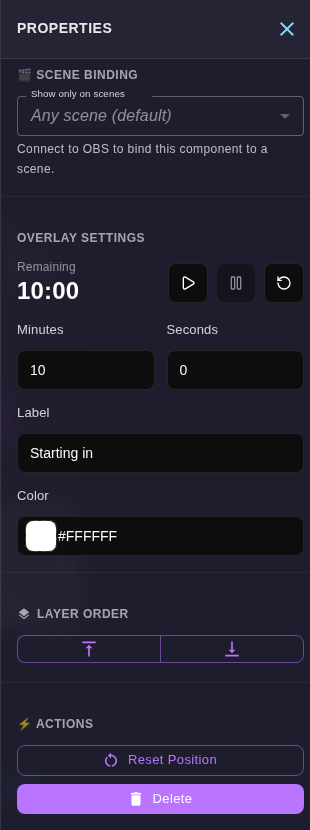
A countdown with a label. Set minutes and seconds (from 1 second to 24 hours), the label (up to 100 characters) and the color. The ▶, ⏸ and ↻ buttons start, pause and reset the timer, with the remaining time shown next to them. The timer runs on the widget page and does not need OBS WebSocket. Changing the duration resets the timer.
QR code
In the Text / link field enter an address or any text (up to 1000 bytes). Dot and background colors and the margin are set in the panel. For reliable scanning use dark dots on a light background, a margin of 2 or more and a side of at least 200 px.
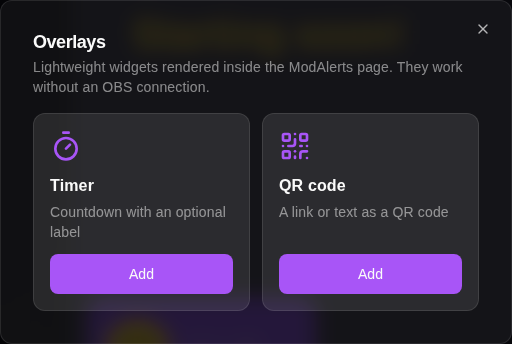
The overlay catalog opens with the "Overlays" button in the toolbar