Stream Deck
A plugin for Elgato Stream Deck: control text-to-speech, the Be Right Back screen, song requests and media alerts with keys instead of the dashboard.
Installation
Until it is published there, install the file from here: download JeetBot for Stream Deck 0.3.1.
A plugin installed from a file does not update itself. New versions will appear on this page: download one and install it over the old one.
Requires the Stream Deck app 7.1 or later on Windows 10+ or macOS 12+.
- Download the file and double-click it. Stream Deck will offer to install the plugin.
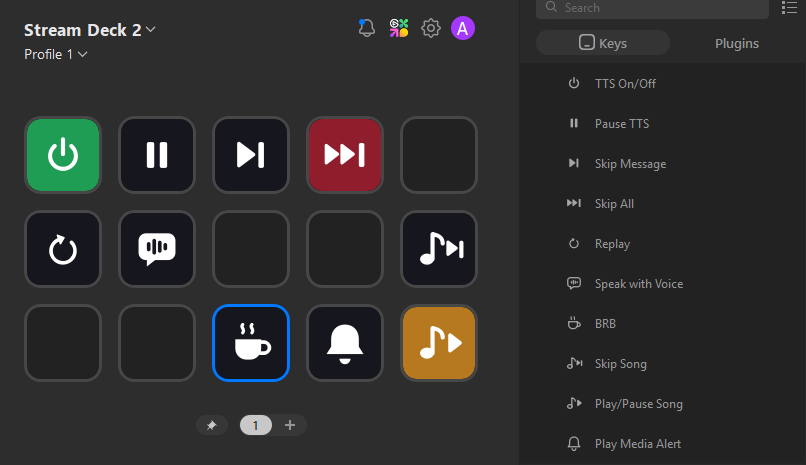
- A JeetBot section appears in the action list on the right. Drag any of its keys onto your Stream Deck.
Connecting
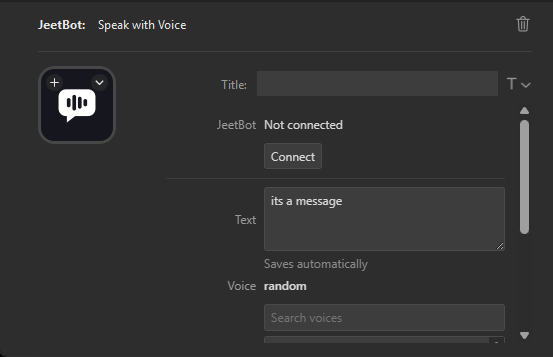
- Select a JeetBot key and click Connect in its settings.
- jeetbot.cc opens with a code. Sign in with the account you use for the dashboard and confirm access.
- The settings now show "Connected: your_name". One connection serves all JeetBot keys.
The code is valid for 30 minutes. If it expires, click Get a new code.
The plugin controls your own channel only: a moderator cannot connect someone else's channel with their account.
Keys
| Key | What it does |
|---|---|
| TTS On/Off | Turns text-to-speech on and off for the channel, like !tts. Green means on. |
| Pause TTS | Pauses and resumes playback. |
| Skip Message | Skips the message that is playing now. |
| Skip All | Skips the current message and clears the queue. |
| Replay | Replays the current or last message. |
| Speak with Voice | Speaks your text in the chosen voice. Text and voice are set in the key settings. The message counts toward your TTS limit like any other. |
| BRB | Starts and stops the Be Right Back screen. Minutes and text can be set in the key settings; empty fields use the widget settings. |
| Skip Song | Skips the current song request. |
| Play/Pause Song | Plays and pauses song requests. |
| Play Media Alert | Plays the chosen media alert, or a random one. |
Keys with a state (TTS, pause, BRB, songs) sync with the server every 15 seconds. If you turn TTS off with a chat command, the key updates on its own.
After a press the key flashes a check mark if the command went through, or a warning triangle if it did not.
If a key shows a triangle
- Songs: the song request overlay must be open in OBS and the queue must have songs.
- Media alerts: no alert is chosen in the key settings, the chosen one was deleted, or you have no alerts yet (create them on jeetbot.cc). The alert plays on the media alerts widget in OBS.
- BRB, songs or alerts after a plugin update: new keys need new permissions. Click Disconnect, then Connect.
Disconnecting
Click Disconnect in the settings of any JeetBot key. You can also revoke access in the dashboard: Connected apps.